
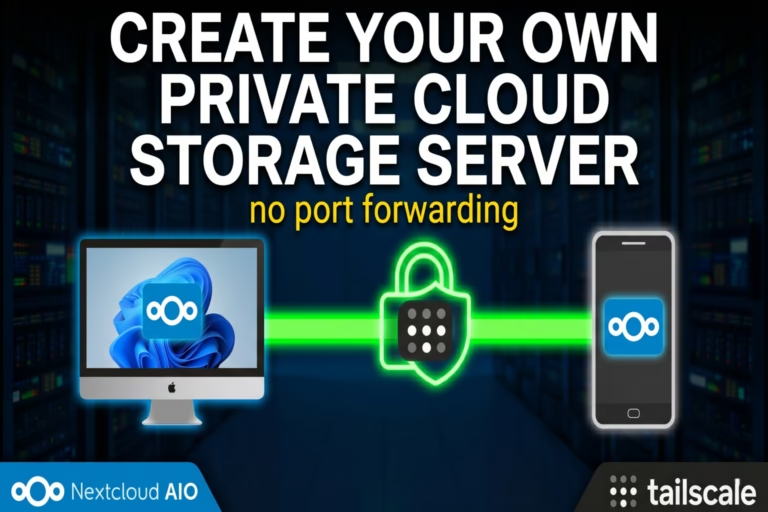
Are you tired of paying monthly subscription fees for services like Google Drive or Dropbox? Do you want full control over your data privacy? Building your own private cloud storage server is the perfect solution.
In this guide, we will show you step-by-step how to set up a powerful self-hosted cloud on your Windows PC using Nextcloud AIO (All-in-One). The best part? We will use Tailscale to safely connect your devices over the internet. This means you can bypass CGNAT and access your files from anywhere with absolutely no port forwarding required!
Let’s dive into creating your own free Google Drive alternative.
What You Will Need
Before we begin, make sure your Windows PC is ready. You will need:
- A Windows PC with an internet connection.
- WSL (Windows Subsystem for Linux) installed.
- Docker Desktop installed and running on your computer.
Step 1: Run the Nextcloud AIO Docker Command
Once Docker Desktop is up and running, we need to download and start the Nextcloud server. We will do this using the Command Prompt.
- Open Command Prompt on your Windows PC.
- Copy the following command and paste it into the prompt.
- Hit Enter to run it.
docker run ^
  --sig-proxy=false ^
  --name nextcloud-aio-mastercontainer ^
  --restart always ^
  --publish 8080:8080 ^
  --env APACHE_PORT=11000 ^
  --env APACHE_IP_BINDING=0.0.0.0 ^
  --env SKIP_DOMAIN_VALIDATION=true ^
  --env NEXTCLOUD_DATADIR="/run/desktop/mnt/host/c/NextcloudData" ^
  --volume nextcloud_aio_mastercontainer:/mnt/docker-aio-config ^
  --volume //var/run/docker.sock:/var/run/docker.sock:ro ^
nextcloud/all-in-one:latestNow, just wait a moment for the Nextcloud AIO server to start up.
Step 2: Install Tailscale to Bypass CGNAT
To access your private cloud storage server from outside your home network, you normally need to deal with complicated router settings. Instead, we will use Tailscale.
- Download and install Tailscale on your Windows PC.
- Once installed, go to the bottom right corner of the taskbar, click the small up-arrow, right-click the Tailscale icon, and log in.
- After logging in, click Connect.
- In the Tailscale dashboard, find your Windows device, click the dropdown menu, and copy the domain name. Keep this ready for the next step.
Step 3: Initial Nextcloud Setup & Passphrase Login
Now that the master container is running and we have our domain, let’s open the setup page.
- Open your web browser and go to
localhost:8080. - You will be greeted with a setup screen and a generated passphrase.
- Copy the passphrase provided on the screen, paste it into the login box below, and hit enter to log in.
- On the next screen, it will ask for a domain name. Paste the Tailscale domain name you copied in Step 2 into the setup box and submit.
Step 4: Enable HTTPS and Download Containers
Now we need to configure the server and start the actual cloud storage containers.
- Uncheck optional add-ons like the office suite to keep your server fast and lightweight.
- Open your Tailscale admin dashboard tab again. Go to the DNS tab, scroll down to the bottom, and click Enable HTTPS.
- Go back to the Nextcloud setup tab.
- Pro Tip: Before clicking download, briefly disconnect your device from Tailscale. This significantly improves the download speed!
- Click the Download and Start Containers button.
This will take a few minutes. Once all the containers are downloaded, up, and running, reconnect your device to Tailscale.
Step 5: Route Your Domain
To ensure your Tailscale domain safely connects to your Nextcloud server, open a new Command Prompt window and run this command:
tailscale serve --bg http://localhost:11000/Note: The --bg tells the command to run silently in the background, so you don’t have to keep the window open!
Step 6: Create Admin & User Accounts
- Go back to the Nextcloud setup tab. You will see an initial Nextcloud password displayed. Copy it.
- Click the Open your Nextcloud button.
- Type admin as the username, paste the copied password, and click log in.
- Welcome to your Nextcloud dashboard! First, go to your settings and change the admin password to something more secure and memorable.
- Finally, create a new user account for your everyday use. Log out of the admin account and log back in with your new user.
Step 7: Access Your Files From Your Phone
Your private cloud storage server is now fully live! Here is how to access it from anywhere:
- Install the Tailscale app on your Android or iOS phone and log in with the exact same account you used on your PC. Once logged in, find your Windows device in the list and copy its domain name.
- Install the Nextcloud app.
- Open the Nextcloud app, tap Login, and type
https://followed by the Tailscale domain name you just copied. Hit Next. - This will open a browser panel. Log in using your newly created user credentials.
- Once authorized, you can now upload files, create folders, and share files with others directly from your phone! Pro tip: If you want to compress or edit your photos before uploading them to your new cloud, use our free Image Suite app to save storage space.
Conclusion: Complete Data Privacy
Congratulations! You have successfully built your own private cloud storage server.
Once you upload your files, they’ll be accessible from any device over the internet. If you open your Windows File Explorer, you will find that Nextcloud stores all your files in the NextcloudData folder directly on your C drive.
As all the uploaded files are stored safely on your own computer, you do not have to worry about your data privacy. Enjoy your free, unlimited cloud storage!drive rather than a remote company server, you never have to worry about data privacy again. Enjoy your free, unlimited cloud storage!
Your PC is now a powerful, private cloud server. If you want to use your Windows computer for more than just storage, check out our tutorial on how to play GTA 5 and other PC games on your Android phone.